

This guide will show you how to change PvP and War Settings on your Project Zomboid Server
Click here to order your Project Zomboid server with Citadel today!
Project Zomboid offers a variety of multiplayer settings that let server owners customize how players interact, fight, and participate in PvP (Player vs. Player) activities. Whether you're hosting a cooperative survival world where players work together to stay alive or a competitive server where groups can raid, fight, and wage war against one another, adjusting your PvP and war settings can help create the gameplay experience you want for your community. These settings let you control how player combat works and set rules for interactions between survivors. Depending on your server's configuration and the available options for your game version, you can adjust PvP-related behavior, including whether players can damage one another and how combat interactions are handled. These options are particularly useful for communities that want to prevent unwanted attacks, encourage fair competition, or create a more challenging multiplayer environment. In addition to standard PvP controls, Project Zomboid includes war settings that can allow factions to initiate conflicts and raid opposing factions' safehouses under specific conditions. These settings depend on the server's safehouse and faction configuration, so enabling wars alone may not be enough. You can also customize the war start delay, war duration, and safehouse hit points to determine how these conflicts play out. In this guide, we'll walk you through how to access your Project Zomboid server's configuration file and adjust the PvP, safety, and war settings to suit your preferred playstyle. Before making any changes, we recommend stopping your server and creating a backup of the relevant configuration files. Once you've saved your changes, restart the server to apply the new settings and verify that PvP and war mechanics behave as expected.
Configuring PVP, War, and Safety Settings
1. Log in to your Game Control Panel.
2. Before making any modifications, stop the server from running by clicking the Stop button.

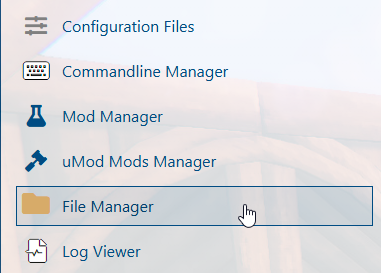
3. Navigate to the File Manager section.
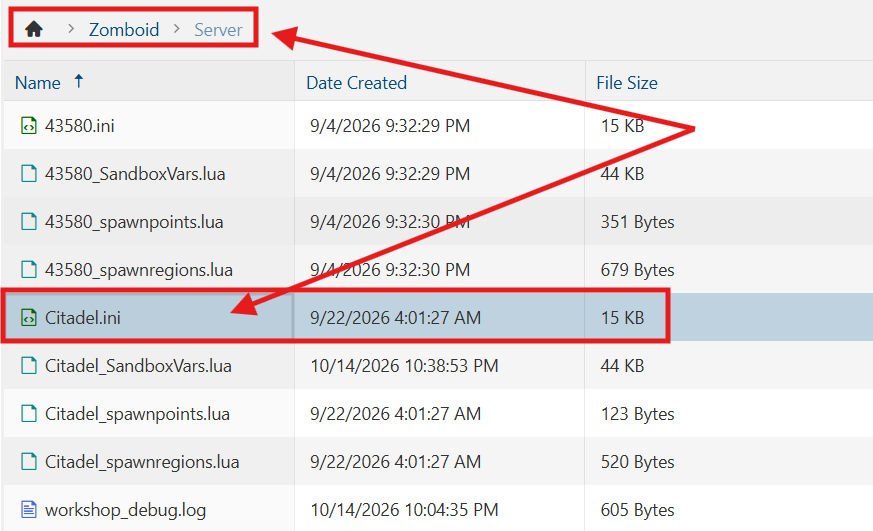
4. Navigate to the /Zomboid/Server directory and locate the [SaveName].ini file, replacing [SaveName] with the name of your server's save.
5. In the file, adjust the desired PvP, War, or Safety settings according to your preferences. Refer to the list below for an overview of the available options and their corresponding functions.
PVP Settings:
| Setting | Description |
|---|---|
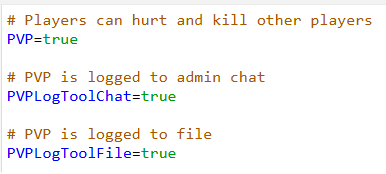
PVP=[true/false] |
Sets whether players can hurt and kill other players. |
PVPLogToolChat=[true/false] |
PVP is logged to the admin chat. |
PVPLogToolFile=[true/false] |
PVP is logged to a file. |
War Settings:
| Setting | Description |
|---|---|
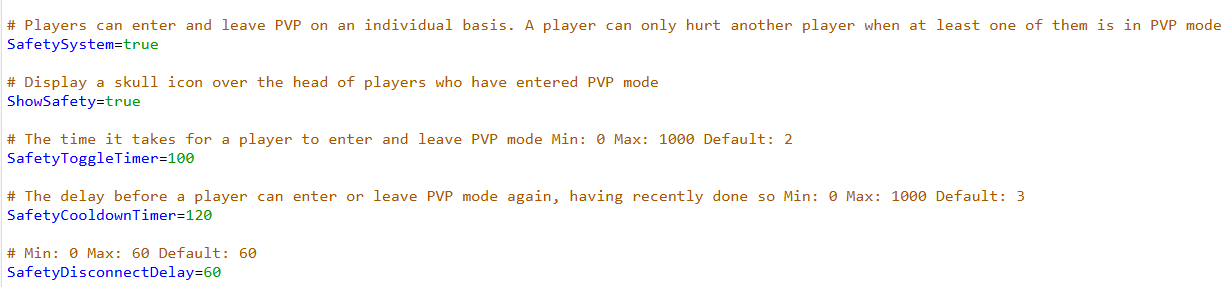
SafetySystem=[true/false] |
Players can individually toggle PVP on or off. Requires PVP to be enabled. |
ShowSafety=[true/false] |
Display a skull icon over the head of players who have entered PVP mode. |
SafetyToggleTimer=[seconds] |
The time it takes for a player to enter and leave PVP mode. Min: 0 Max: 1000 |
SafetyCooldownTimer=[seconds] |
The delay before a player can enter or leave PVP mode again after recently doing so. Min: 0 Max: 1000 |
SafetyDisconnectDelay=[seconds] |
Sets the delay before PvP is toggled off when a player disconnects. |
Safety Settings:
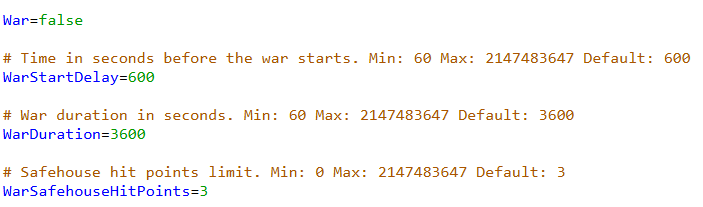
| Setting | Description |
|---|---|
War=[true/false] |
Sets whether wars are allowed on the server. Requires safehouses and factions to be enabled. |
WarStartDelay=[seconds] |
Time in seconds before the war starts. Min: 60 Max: 2147483647 |
WarDuration=[seconds] |
War duration in seconds. Min: 60 Max: 2147483647 |
WarSafehouseHitPoints=[value] |
Sets the safehouse hit points limit during wars. Min: 0 Max: 2147483647 |
6. After editing, click Save to apply the changes.

You can now start playing on your server.
Did the above information not work for you?
Please click here to contact our support via a ticket.