
This guide will show you how to Switch Game Modes on your Unreal Tournament 1999 Server.
Click here to order your Unreal Tournament 1999 server with Citadel Servers today!
Switching game modes on an Unreal Tournament 1999 server is one of the simplest ways to refresh gameplay, tailor matches to your community, and keep your server feeling alive. Whether you want to rotate between classics like Deathmatch, Capture the Flag, and Assault, or experiment with custom mutators and mods, understanding how UT99 handles game types gives you far more control over how players experience your server. Because UT99’s server configuration relies on a mix of INI settings, command-line parameters, and optional admin commands, knowing where each piece fits makes changing modes smooth and predictable rather than trial‑and‑error. A clear grasp of how game modes are defined, how the server reads them at startup, and how to switch them on the fly helps you avoid common pitfalls, like mismatched maps, missing packages, or modes that silently fail to load. It also opens the door to more advanced setups, such as automated map cycles or custom game types from popular mods.
Changing Gamemode on your Unreal Tournament 1999 Server
1. Log in to your Game Control Panel and navigate to your service.

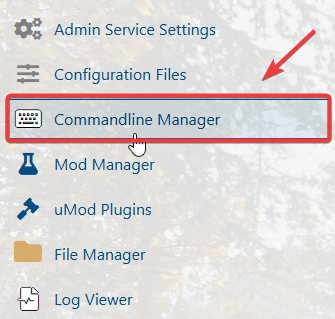

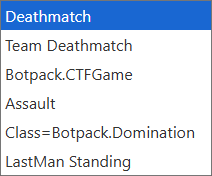
Please click here to contact our support via a ticket.