

This guide will help you learn how to upload a Save to your Hytale Server.
Click here to order your Hytale server with Citadel Servers today!
One of the best parts of running a Hytale server is the ability to customize your world and carry over progress from single-player or other servers. Uploading a save file lets you preserve your builds, adventures, and community creations, so you don’t have to start from scratch every time. Whether you’re migrating an existing world, sharing a creative project with friends, or restoring a backup, the process of uploading a save ensures your server reflects the exact environment you want to play in. It’s a straightforward task, but understanding the steps will help you avoid common pitfalls like missing files or incorrect directory placement. This guide will walk you through the essentials of preparing your save, transferring it to your server, and verifying that everything loads correctly. By the end, you’ll be able to confidently manage your server saves and keep your Hytale world thriving.
Uploading a Save on your Hytale Server
1. Launch the Hytale Game.
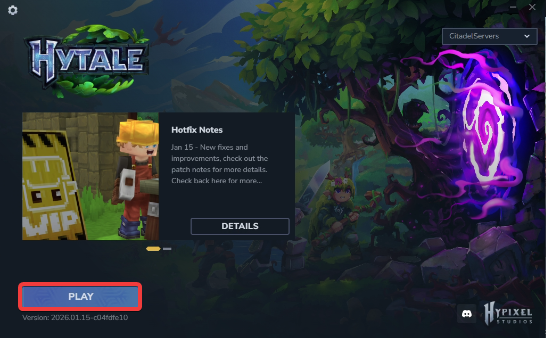
2. Open the World's Menu.
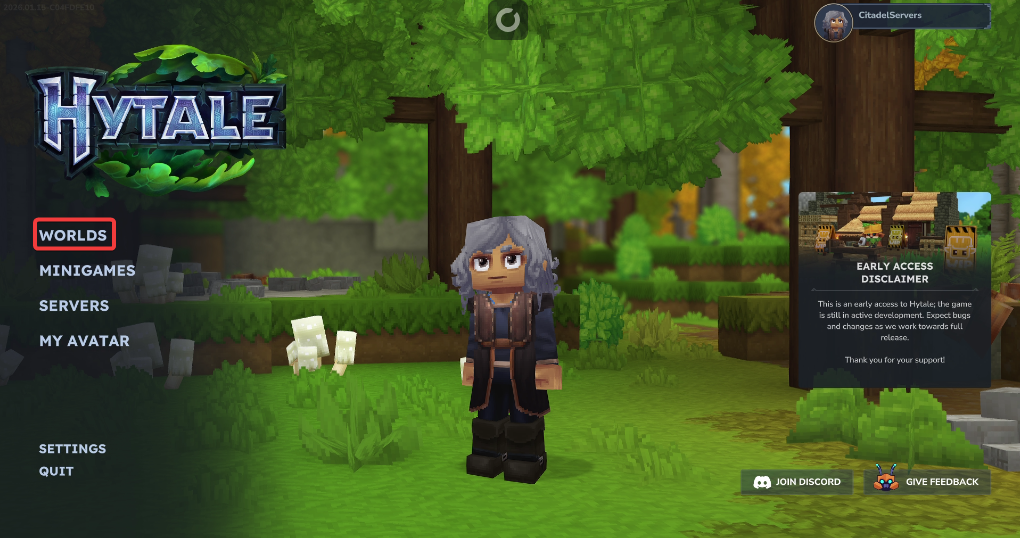
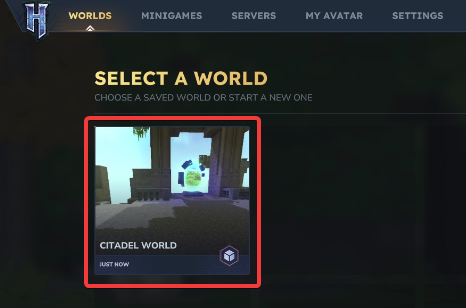
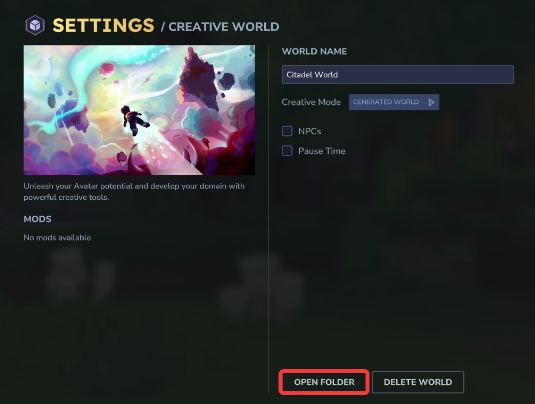
6. Before making any modifications, stop the server from running by clicking the Stop button.

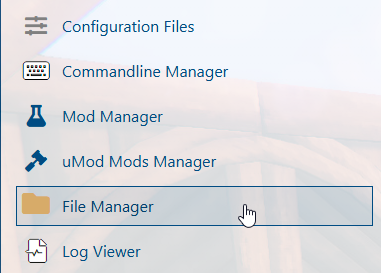
7. Navigate to the File Manager Tab.
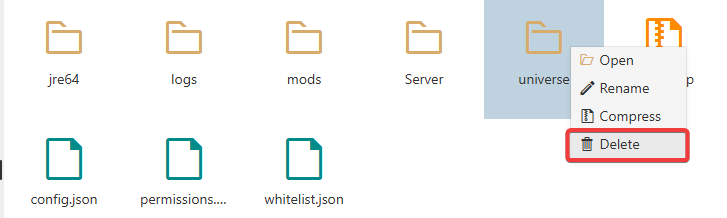
8. On the File Manager tab, look for the universe folder. Right-click the folder and delete it.
9. Upload the universe folder of the chosen world that you wanted to your server.
When uploading, we highly recommend using FTP tools such as FileZilla. We have a detailed guide on how to use it here.
With the folder transferred, you can now start your server and enjoy your world.
Did the above information not work for you?
Please click here to contact our support via a ticket.